I see the option to download my study planner it created based on my target date. I wanted to print it, and when I download it, it downloads as a microsft excel spreadsheet and it looks realy weird & formats strange.
I tried to convert it to a PDF or different file type using adobe and it did not work. Is there a better way to print/download this so it is readable?
The study planner will download in a spreadsheet format that matches your computer’s default program. Once it’s downloaded, you can adjust the formatting within that program to make it easier to view or print as you prefer.
At this time, there isn’t an option to download it in a different format. Please let us know if there’s anything else we can do to support you as you study.
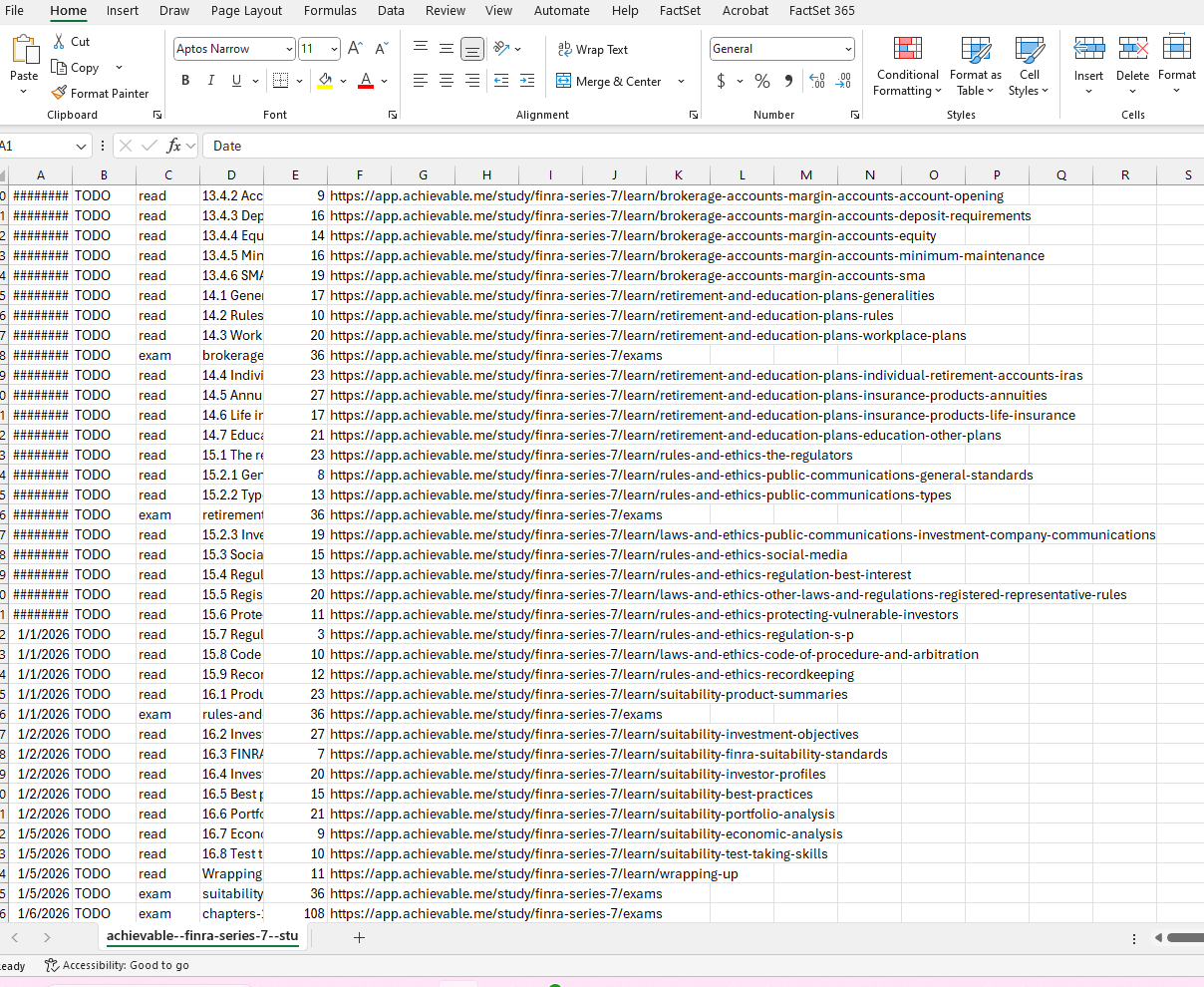
Above is the link it generates when you click “download” above the study plan. And this is how it automatically opens from my computer when I click download from y’alls website and it is illegible. It is nearly impossible to read/understand the formatting.
How would you advise what download settings I need to change on my computer in order for it to download in a legible / easier to read & follow format? What settings do I need to change? Or what application do I need to open it under? This is how it looks in excel. I used adobe acrobat to try and convert it/change it, and it is still illegible. Not sure what settings I need to change in order for it to just appear how it does on y’alls website so that I can have a legible hard version of my study calendar without having to recreate one on my own that I can update/change as needed as I go along with my progress and share with my mentors and print.
The “Download” button above the study plan exports a CSV file, which is a data-oriented spreadsheet. CSVs are designed for sorting/filtering/manipulating study-plan data, not for preserving the same visual layout you see inside Achievable. That’s why it can look scrambled or hard to read when opened directly in Excel or converted to PDF.
The best way to get a clean, legible printout (matching what you see on the site) is to print your dashboard/study plan directly from Achievable:
Log in and go to your Dashboard.
Scroll to your Study plan so it’s visible on screen.
Use your browser’s print function
In the print dialog, choose: “Save as PDF”
That produces a clean, readable calendar view. I’ve attached a sample PDF in an email sent to you so you can see exactly the format you should expect when printing from the dashboard.
Finally, we’re improving the print-friendly formatting on that dashboard view, so it comes out even more neatly going forward. Please let us know if there’s anything else we can do to support you as you study.